Quick Summary
- Most LED display failures are repairable — power supply faults, loose connections, and individual module failures account for over 70% of reported field issues and can be resolved without full panel replacement.
- A systematic 5-step diagnostic sequence (power → connections → control card → modules → software) resolves the majority of LED screen faults before any hardware replacement is needed.
- Individual LED lamp bead or module failure is repairable by component replacement. Full panel replacement is only necessary when the main driver PCB or structural substrate is catastrophically damaged.
- “Fake no-display” faults — where the screen appears dead but is actually a signal, configuration, or sending card issue — account for a significant share of unnecessary replacement decisions.
- Anti-static precautions during repair are non-negotiable: electrostatic discharge is one of the leading causes of secondary damage during DIY LED screen repair.
- Common LED screen faults — including flickering, dead zones, color distortion, and uneven brightness — each have distinct diagnostic signatures that narrow the cause within minutes.
1Can an LED Display Be Repaired? The Direct Answer
Yes — the majority of LED display failures are fully repairable, and in my experience reviewing field maintenance reports and handling commercial LED panel diagnostics, fewer than 20% of “dead screen” cases actually require full panel replacement.
The repairability of an LED display depends on which component has failed:
| Fault Component | Repairable? | DIY or Professional? |
|---|---|---|
| Individual LED lamp beads | ✅ Yes | Professional recommended |
| Power supply unit | ✅ Yes | DIY-capable with precautions |
| Sending card / receiving card | ✅ Yes | DIY-capable |
| HUB board | ✅ Yes | DIY-capable |
| Flat cable / ribbon cable | ✅ Yes | DIY-capable |
| Single LED module | ✅ Yes | DIY-capable (modular swap) |
| Main driver PCB (burnt) | ⚠️ Partially | Professional only |
| Physical substrate damage | ❌ Typically not | Replace affected cabinet |
The critical first step is always diagnosis — not replacement. A screen that shows nothing may simply have a disconnected data cable or a misconfigured sending card, both of which cost nothing to fix.
Before You Open Anything: Safety & Self-Inspection Checklist
Rushing into physical repair without a structured pre-inspection is the most common mistake I see — and it often turns a minor fault into a major one.
Safety Precautions (Non-Negotiable)
- Power down completely before touching any internal components. LED display power supplies can hold residual charge for 30–60 seconds after shutdown.
- Wear anti-static wrist straps when handling PCBs, receiving cards, or LED modules. Electrostatic discharge (ESD) can destroy driver ICs without any visible sign of damage.
- Document before disassembly. Photograph cable routing and connector positions before removal. This prevents reassembly errors that create new faults.
- Work on a grounded ESD mat for any PCB-level work.
Pre-Repair Self-Inspection Sequence
Run this checklist before opening any cabinet:
- Is the mains power supply (220V/110V) present and stable?
- Are all power indicator LEDs on the sending card and power supplies lit as expected?
- Are the data cables (DVI/HDMI/DisplayPort) from the PC/media player fully seated?
- Is the control software showing the display as “online” or “connected”?
- Have any configuration changes been made recently (software update, new content, new PC)?
- Is the fault affecting the entire screen, a cabinet, a module strip, or individual pixels?
Answering these questions takes under five minutes and will often reveal the fault category before any tools are needed.
Why Is My LED Screen Not Working? Root Cause Categories
LED display faults cluster into five distinct root cause categories. Identifying which category applies immediately narrows your diagnostic path.
Category 1: Power Faults
- Symptoms: Entire screen dark, no indicator lights, random reboots
- Common causes: Failed PSU, tripped circuit breaker, loose AC inlet connector, power supply output voltage drift (should be 5.0–5.2V DC for most LED modules)
Category 2: Signal / Connection Faults
- Symptoms: Screen dark but sending card shows activity, partial display, no image from specific input
- Common causes: Faulty or loose DVI/HDMI cable, incorrect graphics card output mode (should be “Clone/Mirror” not “Extended”), wrong resolution or refresh rate setting
Category 3: Sending Card / Receiving Card Faults
- Symptoms: Sending card green indicator not flashing, garbled image, no communication between PC and cabinet
- Common causes: Sending card not fully seated in PCIe/USB slot, receiving card firmware mismatch, damaged network cable between sending and receiving cards
Category 4: Module / Hardware Faults
- Symptoms: Dead zones, strips of non-displaying pixels, color aberrations in specific areas, persistent bright or dark spots
- Common causes: Failed LED module, damaged flat cable, loose HUB board connection, individual LED lamp bead failure
Category 5: Software / Configuration Faults
- Symptoms: All units showing identical content, screen size mapping incorrect, display connection file not loaded
- Common causes: Receiving card configuration not uploaded, incorrect screen mapping in LED control software, outdated firmware
Step-by-Step LED Screen Repair Process
Follow this sequence in order. Each step eliminates an entire fault category before moving to the next. Skipping steps wastes time and risks misdiagnosis.
Step 1: Verify the Power Supply
The power supply is the most common single point of failure in LED displays, particularly in installations over three years old.
- Confirm 220V/110V AC input is present at the cabinet inlet
- Measure DC output voltage at the module connector: should read 5.0V–5.2V
- Voltage below 4.8V or above 5.5V indicates a failing PSU that must be replaced
- Check for PSU protection mode: some units shut down under overload and require a manual reset
If power is confirmed normal → proceed to Step 2.
Step 2: Check All Physical Connections
Loose connections are responsible for a disproportionate number of LED screen faults — especially after transportation, installation, or ambient temperature cycling.
- Reseat all network cables (Cat5e/Cat6) running between sending card output and receiving card input
- Verify all flat ribbon cables between modules are fully clipped into their ZIF connectors
- Confirm HUB board is correctly seated and all module connectors are engaged
- Check DVI/HDMI cable from PC to sending card — wiggle test to identify intermittent contact
If connections are confirmed secure → proceed to Step 3.
Step 3: Diagnose the Sending Card & Receiving Card
The sending card is the bridge between your PC and the LED cabinet. The receiving card sits inside the cabinet and drives the modules.
Sending card green LED flashing = sending card is communicating. Fault lies downstream (receiving card, network cable, modules).
Sending card green LED not flashing = sending card is not receiving a valid signal. Check:
- DVI/HDMI input connection
- PC graphics card output mode (must be Clone/Duplicate, not Extended Desktop)
- Software LED display power setting (confirm display is not set to “off” in software)
- Reseat the sending card in its slot; replace if still non-functional
Receiving card faults: If sending card is active but specific cabinets are dark, test by swapping receiving cards between a working and non-working cabinet to confirm the diagnosis.
If control cards are confirmed functional → proceed to Step 4.
Step 4: Isolate the Failing Module or Strip
At this point the fault is hardware-specific. Identify the exact failed component:
- Full cabinet dark: Check 220V supply cable to that cabinet; test receiving card
- Horizontal strip not displaying: Check ribbon cable from the last working module to the first non-working module at the junction
- 3–6 modules dark: Check power supply for those modules; PSU protection or damage
- Individual pixels or small clusters: Failed LED lamp beads — requires bead-level replacement or module swap
- Entire display showing same content across all units: Receiving card configuration file not uploaded — reload via LED control software
Module swap procedure:
- Power down the cabinet
- Disconnect the faulty module’s data connector and power connector
- Install replacement module of identical specifications (pixel pitch, voltage, IC driver)
- Reconnect and power on
- Verify display in control software
Step 5: Reload Software Configuration & Restart
After any hardware change — or if no hardware fault was found — perform a full software configuration reload:
- Open LED control software (Novastar, Colorlight, Linsn, or equivalent)
- Reload the receiving card configuration file for all affected cabinets
- Verify screen mapping and resolution match the physical installation
- Perform a full system restart (power cycle, not just software restart)
- Run a test pattern to confirm full display uniformity
Common LED Display Faults & Solutions (Fault Code Reference)
This reference table covers the most frequently encountered faults across commercial LED installations.
Fault Reference Table
| Symptom | Most Likely Cause | First Action |
|---|---|---|
| Entire screen dark, no indicators | AC power failure or main PSU fault | Check breaker; measure AC inlet |
| Sending card green light not flashing | No valid signal from PC | Check DVI cable; verify graphics card clone mode |
| Sending card green light flashing, screen dark | Network cable or receiving card fault | Reseat/replace Cat5e cable; swap receiving card |
| Horizontal strip not displaying | Ribbon cable disconnected or damaged at module junction | Re-seat or replace ribbon cable at fault boundary |
| 3–6 adjacent modules dark | PSU overload protection or AC supply loose | Measure PSU output voltage; reconnect AC power lead |
| Full cabinet not displaying | Receiving card fault or HUB board misaligned | Reseat HUB board; replace receiving card |
| All units showing identical content | Configuration file not sent to receiving cards | Reload connection file in LED software |
| Image flickers or strobes | PSU voltage instability or ground loop | Measure DC output; verify grounding |
| Color distortion (green/red cast) | Receiving card partial failure or data cable fault | Swap receiving card; replace data cable |
| Uneven brightness across panels | Calibration file mismatch or aging modules | Re-run brightness calibration in software |
| Dead pixels in cluster | Failed LED lamp beads | Replace affected module or individual bead |
| Ghost image / image persistence | Improper content loop or driver IC fault | Restart system; check refresh rate setting |
Detailed Fault Scenarios
Fault: Sending Card Green Light Flashing — Screen Still Dark
This is one of the most misdiagnosed faults. The sending card is working. The issue is downstream:
- Check that the screen’s main power supply is switched on (separate from the PC/sending card power)
- Inspect the Cat5/Cat6 network cable from sending card to the first receiving card — test with a known-good cable
- Verify DC power supply output to receiving card is within 5.0–5.2V range
- If a fiber optic transceiver or function card is installed between sending and receiving cards, test by bypassing it with a direct cable run
Fault: Long Horizontal Strip Not Displaying
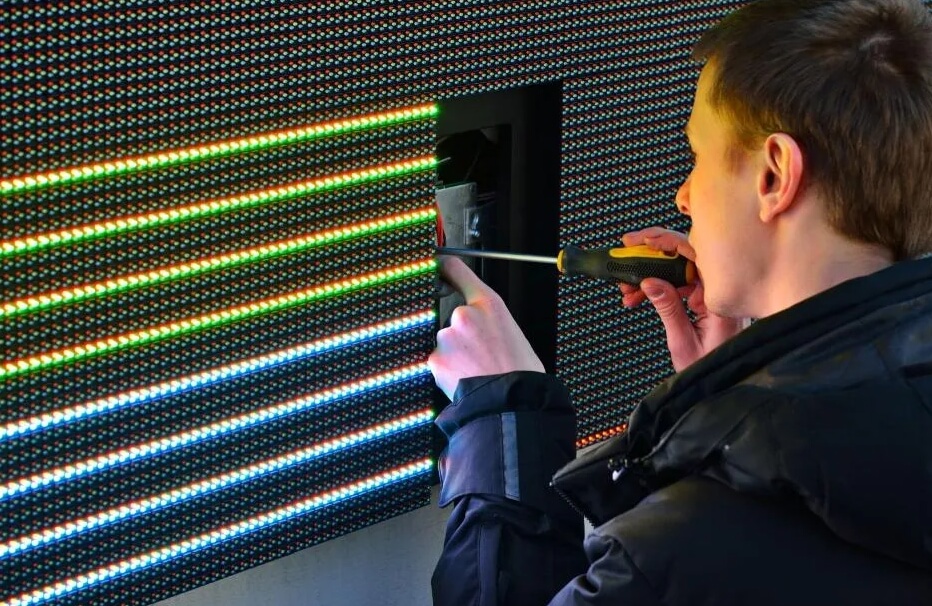
This fault has a specific visual signature: a strip of dead pixels exactly as tall as one LED module, running across the full width of the cabinet. Cause is almost always the ribbon cable connecting the last working row of modules to the first dead row.
- Identify the exact boundary between working and non-working rows
- Power down and reseat the ribbon cable at that junction
- If reseating doesn’t resolve it, test the output of the last working module — if its output pin is dead, that module’s driver IC may have failed
Fault: All Modules Displaying Identical Content
Counterintuitively, this means the hardware is functioning — it’s a software configuration problem. The LED control software has not successfully transmitted the screen layout configuration to the receiving cards. Each receiving card defaults to displaying the full image rather than its assigned section.
- In your LED control software, navigate to the screen configuration / connection diagram section
- Re-send the configuration file to all receiving cards
- If the issue persists, shorten the network cable run or replace it — cable length limits for Cat5e are 100 meters, but LED system data transmission is more sensitive and works best under 60 meters
When Repair Is Not Worth It: Replacement Decision Guide {#replacement}
Not every LED display fault is worth repairing. Here is the framework I use when evaluating repair vs. replacement decisions for commercial installations:
Repair Is Recommended When:
- The fault is isolated to a single module, PSU, or control card
- Replacement parts cost less than 30% of a new equivalent panel
- The display is under 5 years old and the rest of the panel is performing normally
- The fault is a cable, configuration, or software issue (essentially free to fix)
Replacement Is Recommended When:
- Multiple modules across different cabinets are failing simultaneously (indicates end-of-life degradation)
- The main driver PCB has burnt traces or visibly damaged ICs and equivalent parts are no longer available
- The pixel pitch or technology is obsolete relative to current content requirements
- Cumulative repair costs have exceeded 50% of replacement cost within 12 months
- Physical substrate or frame damage affects structural integrity
LED Display Lifespan Reference
| Component | Typical Lifespan |
|---|---|
| LED lamp beads (outdoor) | 50,000–100,000 hours |
| LED lamp beads (indoor) | 80,000–100,000+ hours |
| Power supply units | 3–7 years |
| Sending / receiving cards | 5–10 years |
| Full panel (commercial grade) | 8–12 years with maintenance |
Preventive Maintenance to Avoid Repeat Failures {#prevention}
The most cost-effective repair is the one that never happens. Based on common-cause failure analysis across LED display installations, the following maintenance schedule prevents the majority of field failures:
Monthly
- Inspect all visible cable connections for looseness or corrosion
- Check PSU output voltage on all cabinets (should read 5.0–5.2V)
- Run a full-screen test pattern to identify any emerging dead zones
- Clear any dust accumulation from ventilation slots and fans
Quarterly
- Clean module surfaces with appropriate anti-static solution
- Verify control software version and update if a stable newer version is available
- Test backup sending card and receiving cards to confirm spares are functional
- Review brightness and color calibration — recalibrate if uniformity has degraded
Annually
- Full thermal inspection under load — infrared camera recommended for large installations
- Replace any PSU showing voltage drift or audible electrical noise
- Update cabinet configuration files and back up to secure storage
- Assess module aging: panels operating at reduced brightness to maintain specifications may be approaching replacement threshold
FAQ
Q: Can I repair an LED display myself, or do I need a professional? Power supply replacement, cable reseating, and module swapping are within reach for anyone comfortable working with electronics and following anti-static precautions. LED bead-level soldering and driver IC replacement require professional-grade equipment and skills. When in doubt, consult the panel manufacturer’s authorized service network.
Q: My LED screen flickers. What is the most likely cause? Flickering most commonly indicates power supply voltage instability (measure DC output — should be 5.0–5.2V), a ground loop in the electrical installation, or a failing receiving card. It can also be caused by a refresh rate mismatch between the control software and the panel’s driver IC configuration.
Q: How do I know if my sending card is the problem? Observe the green status LED on the sending card. If it is not flashing, the sending card is not receiving a valid input signal — check your DVI/HDMI cable and PC graphics card settings first. If it is flashing but the screen remains dark, the sending card is working and the fault is in the receiving card, network cable, or downstream hardware.
Q: What voltage should my LED display power supply output? Standard indoor and outdoor LED display modules operate at 5V DC. Acceptable range is 5.0V–5.2V. Voltage below 4.8V will cause modules to dim or drop out. Voltage above 5.5V risks damage to LED driver ICs. Always measure at the module connector, not at the PSU output terminals, to account for cable voltage drop.
Q: Why does the same content appear on all my LED cabinets? This is a software configuration issue. The receiving cards have not received their screen-mapping configuration file from the control software. Open your LED control software, navigate to the screen configuration section, and re-upload the connection/configuration file to all receiving cards. This is not a hardware fault.
Q: How long do LED displays typically last before they need replacement? Commercial-grade LED lamp beads are rated for 50,000–100,000 hours of operation. At 12 hours per day of operation, this equals 11–22 years of bead life. In practice, power supplies and control cards often require replacement within 5–8 years. Full panel replacement is typically considered after 8–12 years for commercial installations.
Q: Can a water-damaged LED display be repaired? Minor moisture exposure — condensation, brief water contact — can often be recovered by thoroughly drying the display (power off, natural air drying for 24–48 hours, then controlled warm air) and inspecting for corrosion on PCB traces. Submersion or sustained moisture exposure typically requires module-by-module assessment and often results in partial or full replacement. Never power on a water-damaged display before confirming complete dryness.
Conclusion
The majority of LED display faults are diagnosable and repairable using a systematic approach: power first, then connections, then control cards, then modules, then software. Skipping to hardware replacement without completing this sequence is the most expensive diagnostic error in LED display maintenance.
For complex commercial installations, maintaining a spare parts inventory — at minimum one sending card, two receiving cards, two PSUs, and four modules per cabinet type — eliminates the costly downtime that turns a 30-minute repair into a multi-day service call.
If your display fault matches any scenario in the fault reference table above but the recommended fix doesn’t resolve it, the next step is contacting the panel manufacturer with the specific symptom description, PSU voltage measurement, and sending card LED status — this information will cut diagnostic time significantly.
References:
- IEC 62717: LED Modules for General Lighting — Performance Requirements
- Colorlight LED Control System Technical Manual